- TypeScript 59.6%
- Go 30.3%
- SCSS 8.9%
- JavaScript 0.6%
- Makefile 0.3%
- Other 0.2%
 07d5fba3c0
Starting Zasper in a new folder logged "could not dial: zmq4: could not dial to tcp://127.0.0.1:…: operation was canceled" right after the banner. The strip was seeded at module load from the project written last, so that it could be painted before any request went out, and swapped for this project's own once /api/info answered. But the seeded front tab mounted at once, and when it was a notebook it created a session and started a kernel for its path in the new folder. When /api/info named a different directory the swap unmounted it, the kernel was stopped while its sockets were still connecting, and the cancelled dial was what reached the log. Where the path happened to exist here as well, the wrong file was opened for a moment too. The strip now starts as the Launcher alone and useRememberTabs restores this project's strip on its first run with a directory, the way useRememberRecentFiles already reads recent files. A tab someone opens in the moment before the directory arrives is kept rather than replaced. readStoredTabs takes the directory it is asked about, and the record's "last" field, which existed only for the seed, is no longer written or required; version 3 has not shipped, 1.1.0 wrote version 2, so nothing out there depends on it. tabSeed.test.ts now asserts the seed is the Launcher alone with a strip remembered, which fails against the old seed, and the ordering and load cases moved onto rememberedGroups. The restore tests no longer mock rememberedDirectory, which is gone, and cover the strip staying the Launcher until the directory is known. |
||
|---|---|---|
| .github | ||
| assets | ||
| bin | ||
| docker | ||
| docs | ||
| e2e | ||
| internal | ||
| resources | ||
| scripts | ||
| snap | ||
| ui | ||
| .dockerignore | ||
| .gitattributes | ||
| .gitignore | ||
| .goreleaser.yml | ||
| .nvmrc | ||
| app.go | ||
| app_test.go | ||
| browser.go | ||
| browser_test.go | ||
| CHANGELOG.md | ||
| CLA.md | ||
| cliff.toml | ||
| CODE_OF_CONDUCT.md | ||
| CONTRIBUTING.md | ||
| desktop.go | ||
| go.mod | ||
| go.sum | ||
| LICENSE | ||
| main_cli.go | ||
| Makefile | ||
| PRIVACY.md | ||
| PUBLISHING.md | ||
| README.md | ||
| serve.go | ||
| spa.go | ||
| spa_apiserver.go | ||
| spa_handler.go | ||
| spa_handler_test.go | ||
| version.txt | ||

High Performance IDE for Jupyter notebooks.
Any Jupyter kernel, one static binary, a fraction of JupyterLab's resource use.




Documentation · Downloads · Installation · Slack
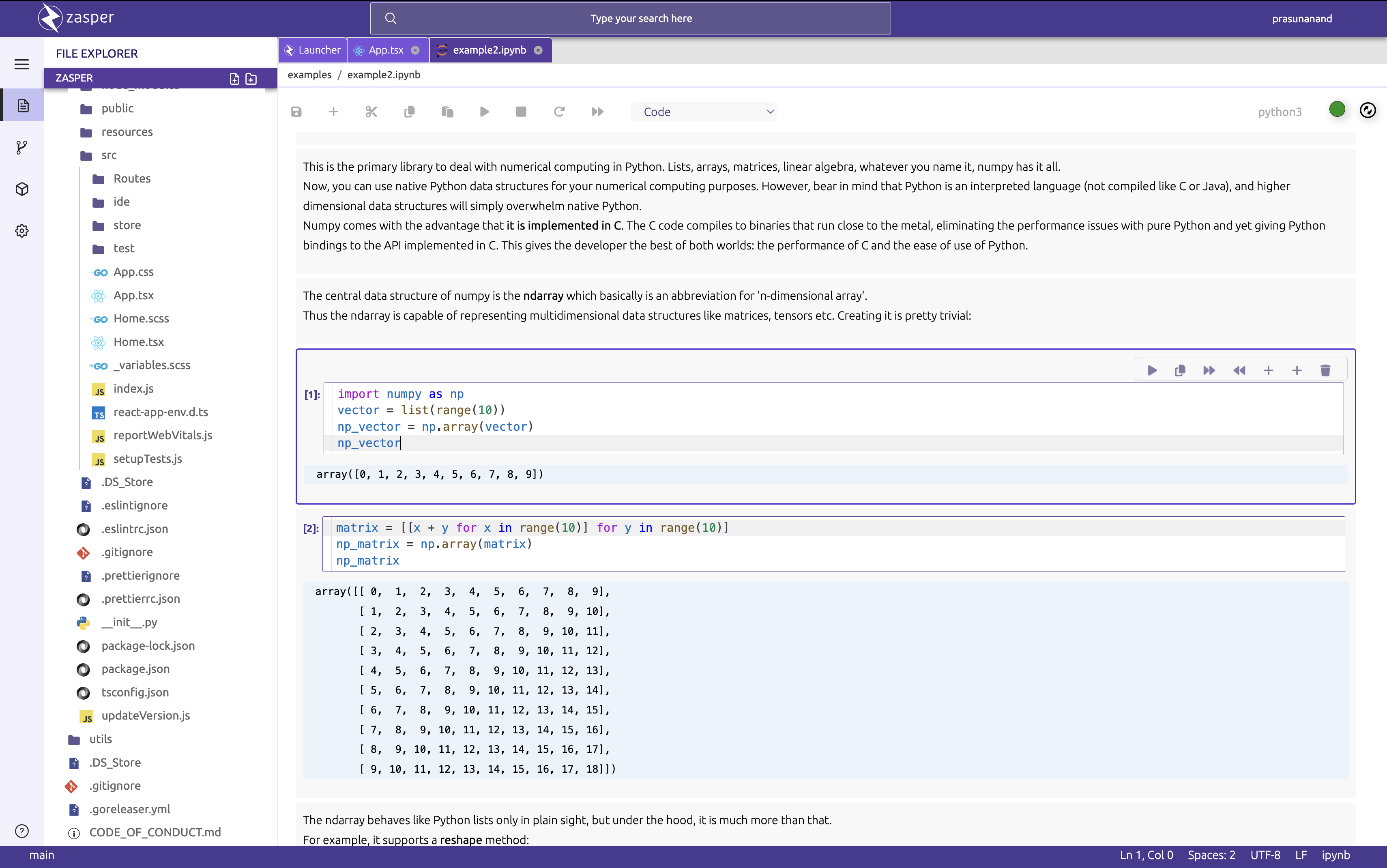
Overview
Zasper is an IDE for Jupyter notebooks, designed from the ground up for concurrency and a small
footprint. It implements Jupyter's wire protocol,
so it runs any Jupyter kernel, and it reads and writes the .ipynb format directly, so notebooks
move between Zasper and JupyterLab unchanged.
Zasper is a single static binary with no runtime dependencies. It serves its interface to your browser, on your own machine or on a server you share.
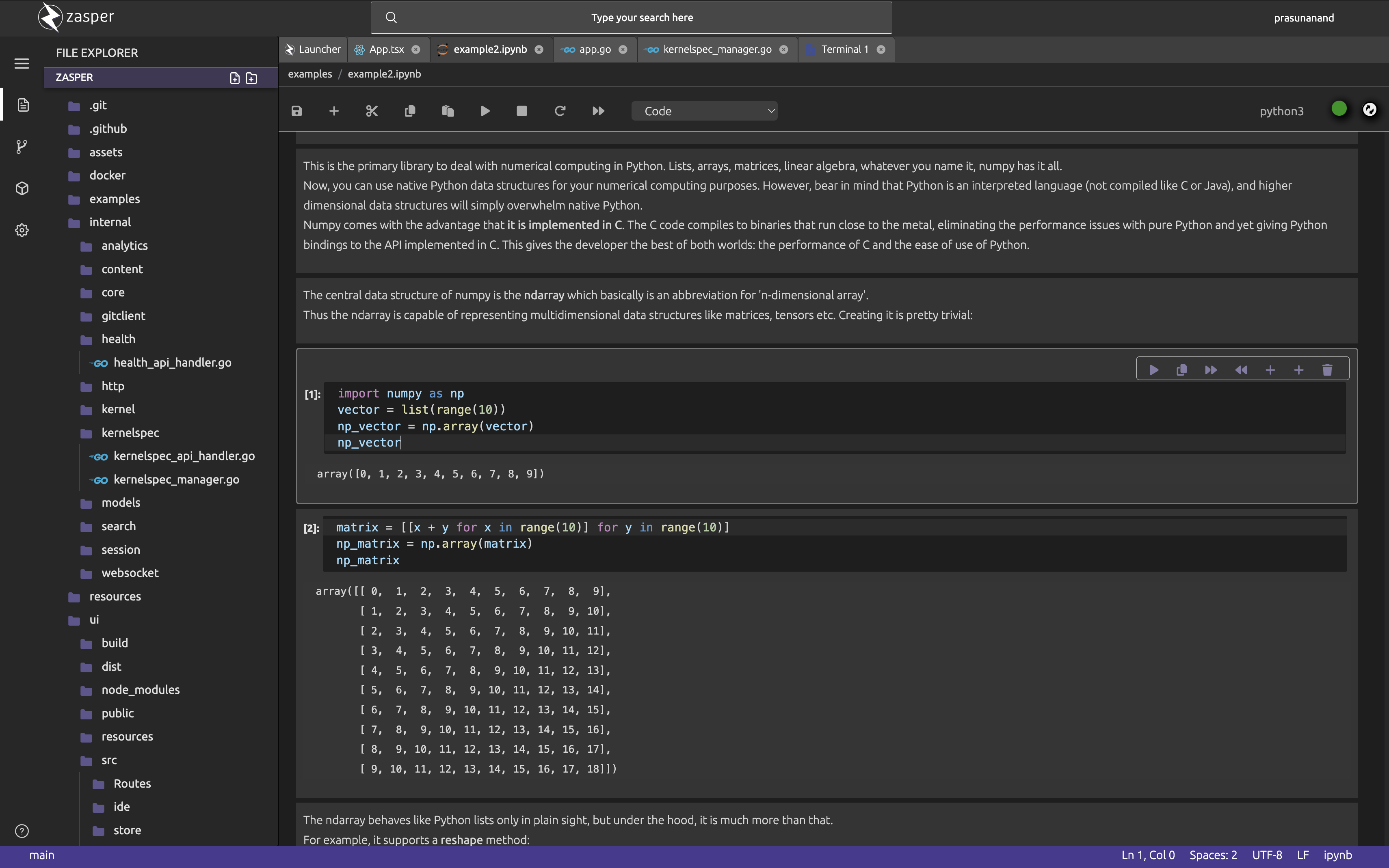
- Notebooks on any Jupyter kernel, with Plotly, ipywidgets, HTML and Markdown with LaTeX rendered inline. A save is byte-for-byte what Jupyter would have written.
- Editor, terminal and version control in the same window as your notebooks.
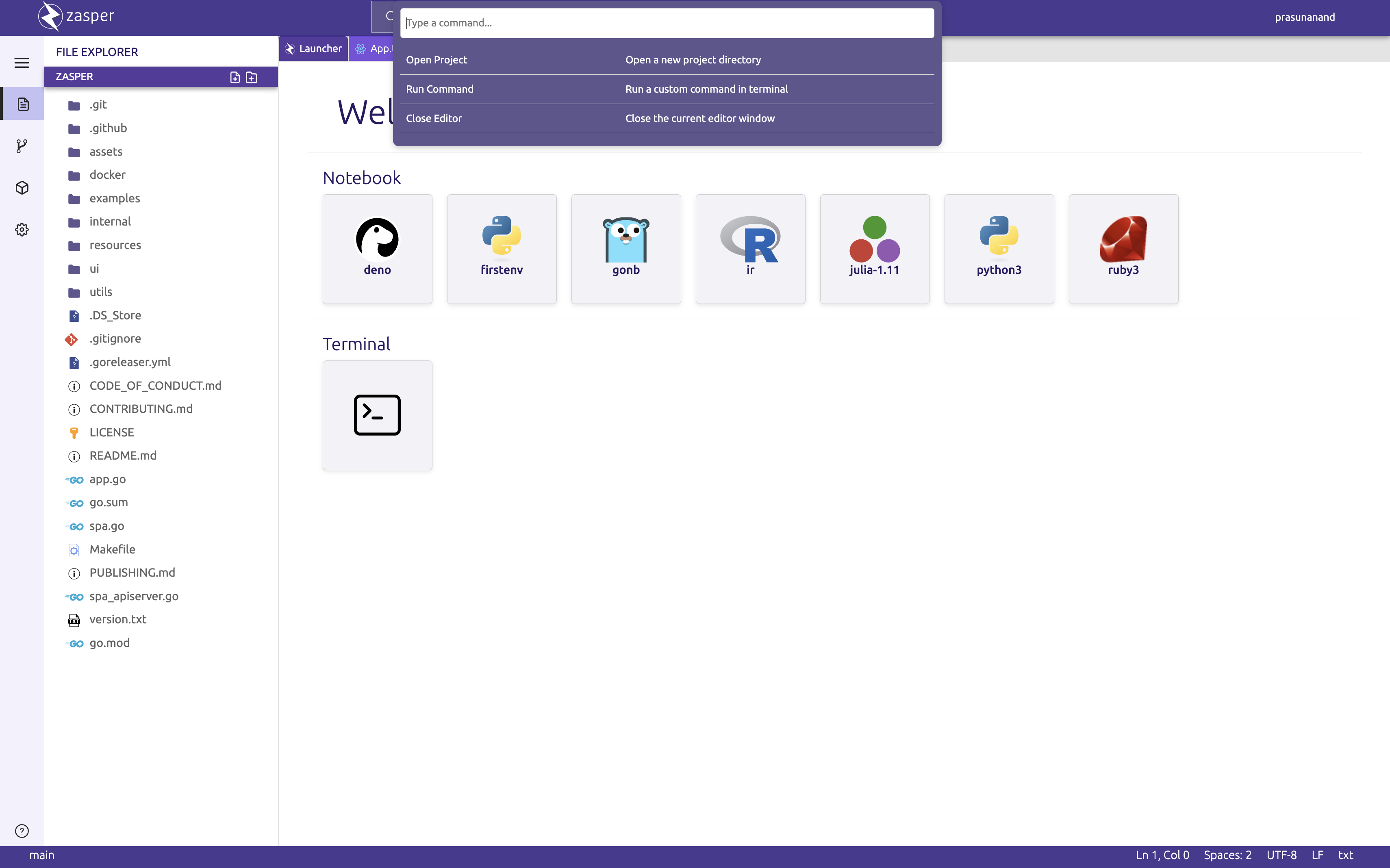
- Command palette that finds files and every command in one search.
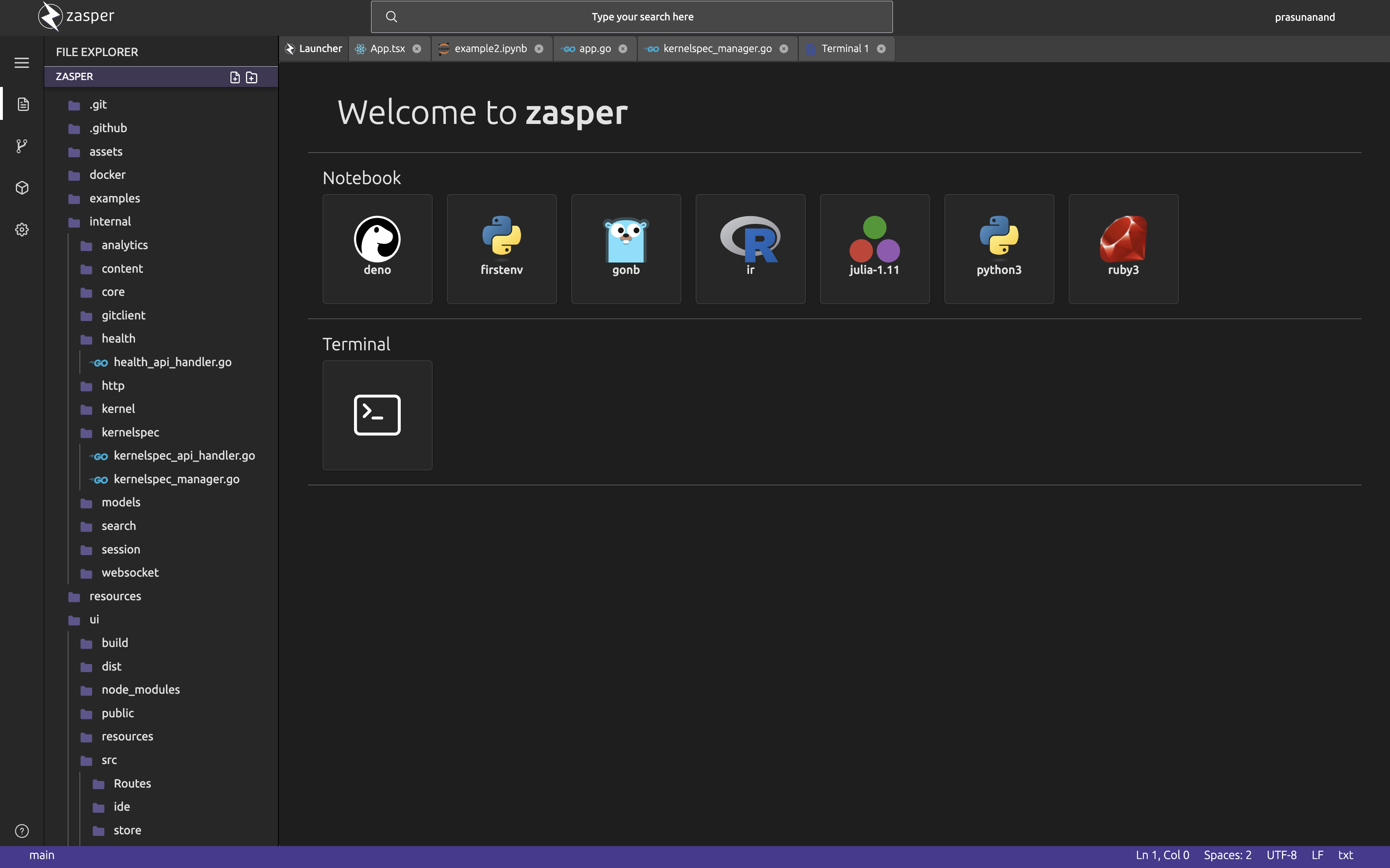
- Light and dark themes, and window zoom.
- Self-hosting built in: every session is protected by an access token.
More screenshots
Editor
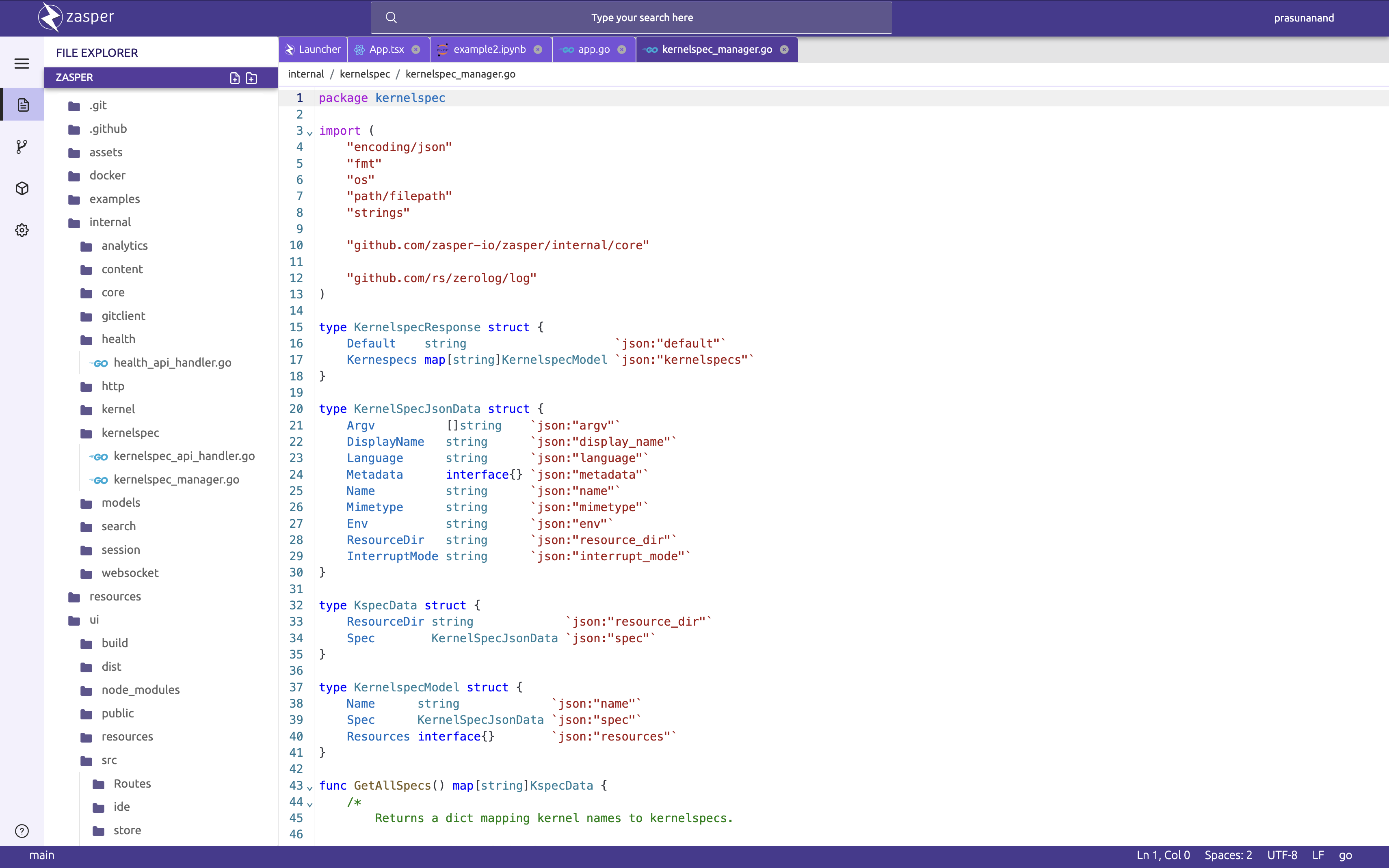
Terminal
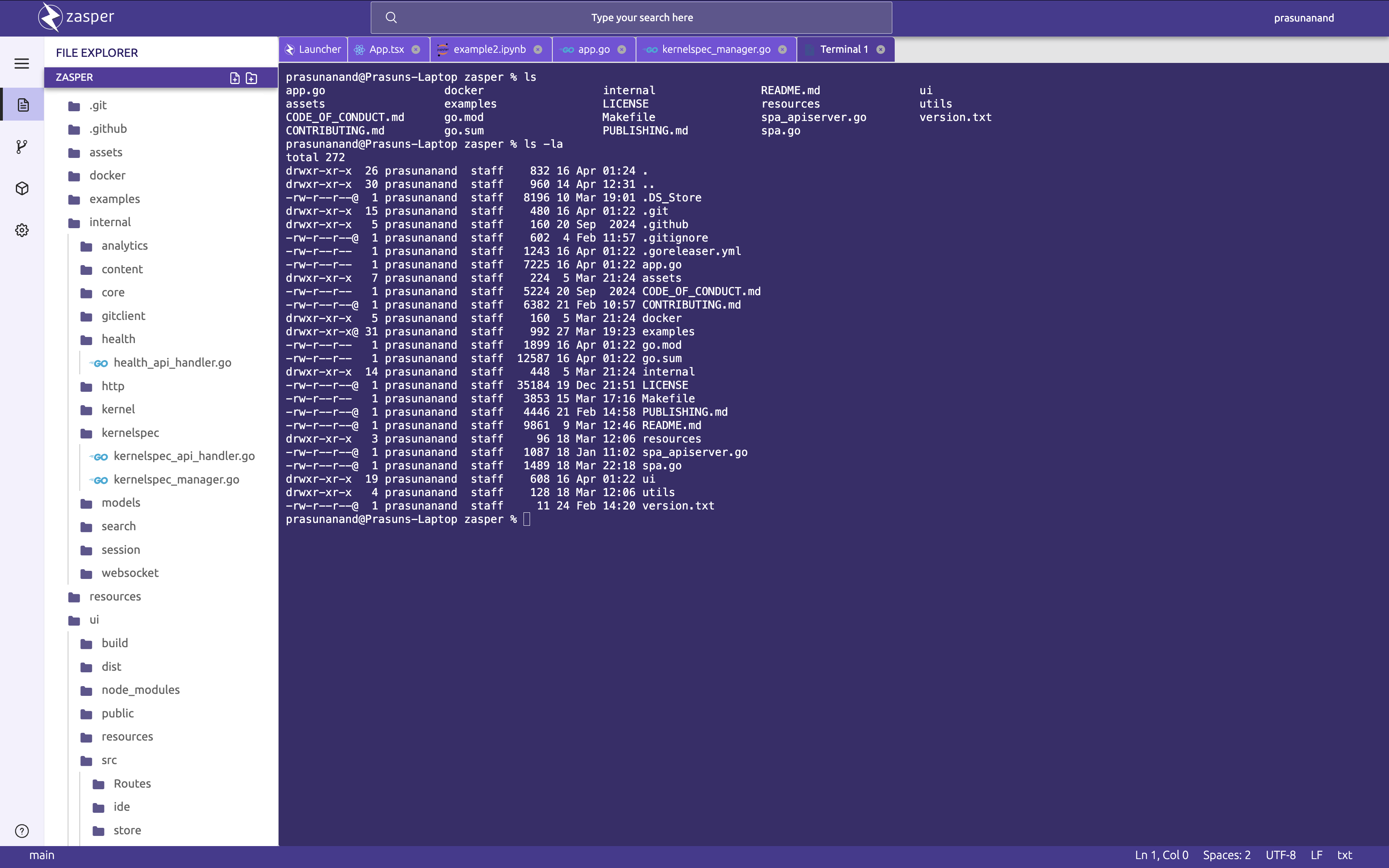
Launcher
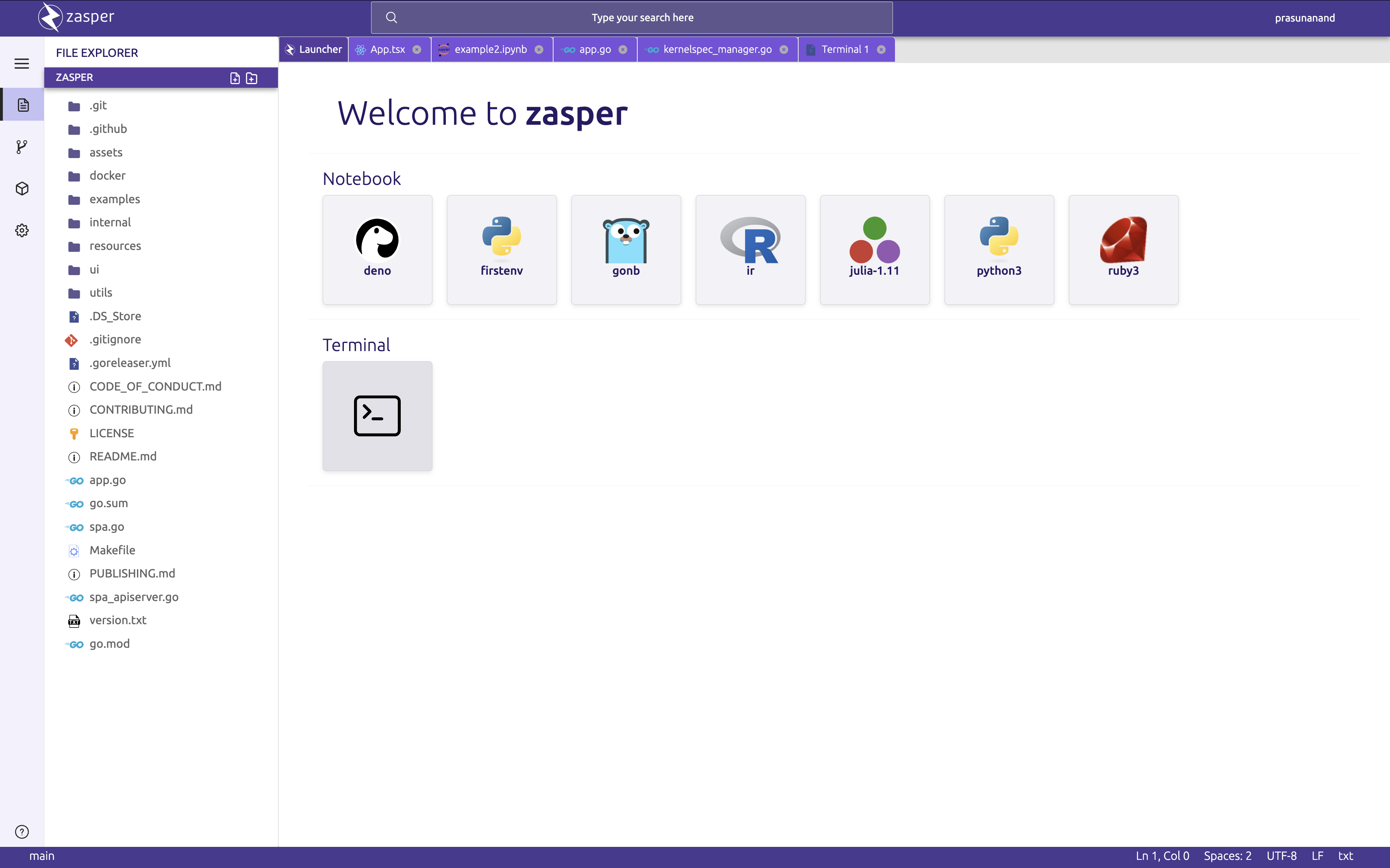
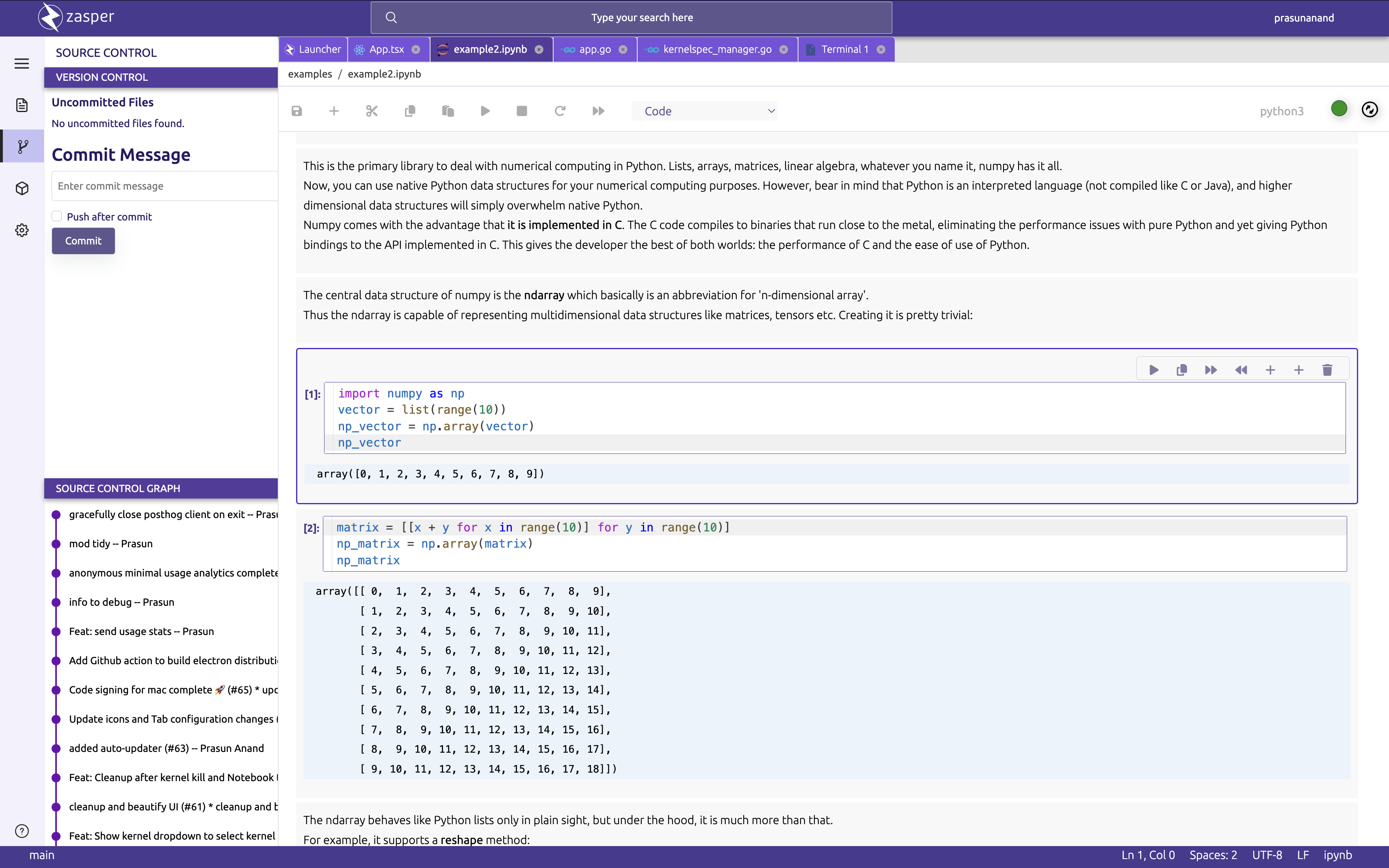
Version control
Command palette
Dark theme
Contents
- Performance
- Installation
- Getting started
- Self-hosting
- Jupyter kernels
- Language servers
- Notebook compatibility
- Keyboard shortcuts
- Configuration
- Logging and privacy
- Architecture
- Building from source
- Roadmap
- Documentation
- Community and support
- Contributing
- License
Performance
In benchmarks against JupyterLab, Zasper uses:
- up to 5× less CPU,
- up to 40× less memory,
with higher throughput and lower latency, and it stays responsive under very high load.
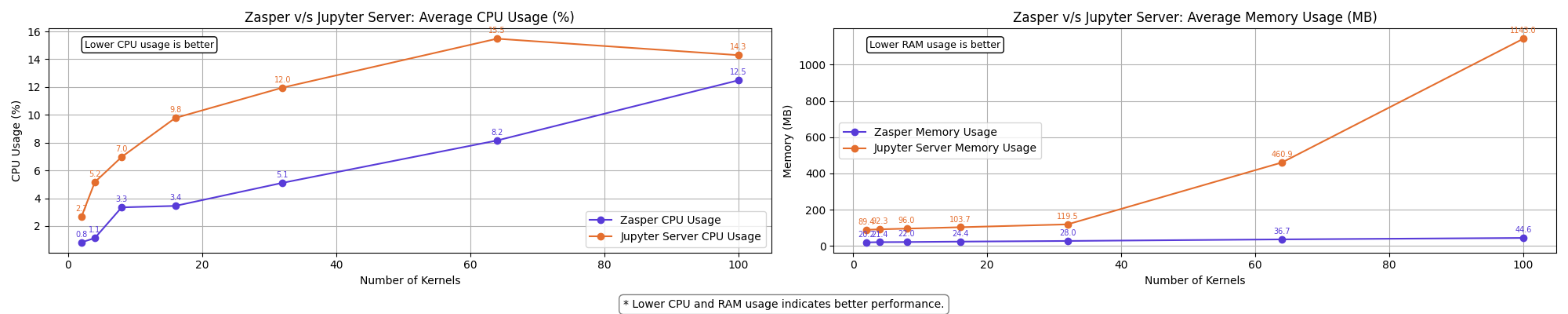
The methodology and full results are in the benchmark report.
Installation
Current release version: v2.0.0
| Platform | Support |
|---|---|
| macOS | Supported |
| Linux | Supported |
| Windows | Binaries are published and notebooks run, but terminals are not available yet and some kernel paths are less well exercised. For terminals and the best experience, use WSL. |
Requirements. Zasper runs notebooks on Jupyter kernels but does not install one:
pip install ipykernel is enough to start (see Jupyter kernels). You also
need a modern browser, since Zasper serves its interface locally rather than being a separate
desktop application. Without a kernel, Zasper still starts and the Launcher tells you what to
install.
Homebrew
brew tap zasper-io/tap
brew trust zasper-io/tap
brew install zasper-io/tap/zasper
Homebrew 6 loads nothing from a third-party tap until you trust it, which is what brew trust
records. If you installed 0.x through Homebrew, run brew uninstall zasper first: from 1.0,
Zasper is published as a cask rather than a formula.
Snap
sudo snap install zasper

conda
conda install -c conda-forge zasper
Prebuilt binaries
Every release ships a signed, notarized macOS
build and static binaries for Linux and Windows. The Linux archives are plain tarballs: one build
serves every distribution. There is no .deb or .rpm yet.
| Platform | Architecture | Archive |
|---|---|---|
| macOS | Apple Silicon | zasper-webapp-<version>-darwin-arm64.tar.gz |
| macOS | Intel | zasper-webapp-<version>-darwin-amd64.tar.gz |
| Linux | x86-64 | zasper-webapp-<version>-linux-amd64.tar.gz |
| Linux | ARM64 | zasper-webapp-<version>-linux-arm64.tar.gz |
| Linux | i386 | zasper-webapp-<version>-linux-386.tar.gz |
| Windows | x86-64 | zasper-webapp-<version>-windows-amd64.zip |
| Windows | ARM64 | zasper-webapp-<version>-windows-arm64.zip |
| Windows | i386 | zasper-webapp-<version>-windows-386.zip |
Each release carries a zasper_<version>_checksums.txt. Verify a download with
sha256sum -c zasper_<version>_checksums.txt --ignore-missing. The same archives are listed on the
downloads page.
Docker
An image can be built from docker/; see docker/README.md.
Getting started
Run zasper in the directory you want to work in:
$ zasper
==========================================================
     ███████╗ █████╗ ███████╗██████╗ ███████╗██████╗
     ╚══███╔╝██╔══██╗██╔════╝██╔══██╗██╔════╝██╔══██╗
       ███╔╝ ███████║███████╗██████╔╝█████╗  ██████╔╝
      ███╔╝  ██╔══██║╚════██║██╔═══╝ ██╔══╝  ██╔══██╗
     ███████╗██║  ██║███████║██║     ███████╗██║  ██║
     ╚══════╝╚═╝  ╚═╝╚══════╝╚═╝     ╚══════╝╚═╝  ╚═╝

                    Zasper Server
                Version: 1.0.0
----------------------------------------------------------
 ✅ Server started successfully!
 📡 Bound to:            127.0.0.1:8048
 🖥️  Webapp available at: http://127.0.0.1:8048
 🔐 Server Access Token: 14be1b674a3b9196a82c01129028d0dd
 🔗 Sign in with:        http://127.0.0.1:8048/?token=14be1b674a3b9196a82c01129028d0dd
==========================================================
Zasper opens the Sign in with link in your default browser, so you arrive already signed in.
It does this on macOS and Windows, and on Linux when there is a display. Pass --no-browser to
leave the browser closed, for example on a machine you reach over SSH, and open the link
yourself.
Self-hosting
Zasper always runs in protected mode: every route except the health check needs a session, and a session comes from the access token printed at startup.
1. Start the server
zasper --host=0.0.0.0 --no-browser
--host makes the server reachable from other machines. Zasper binds 127.0.0.1 by default;
widen it only when you mean to. Bound to 127.0.0.1, it answers only to localhost, 127.0.0.1 and
[::1], which stops a web page that points its own domain at your machine from reaching it. Behind a reverse
proxy on the same machine, keep the default and name the proxy's host instead:
--allow-host=zasper.example.com. With --host=0.0.0.0 the banner reports the wider binding:
 📡 Bound to:            0.0.0.0:8048
 🖥️ Webapp available at: http://localhost:8048
 🔐 Server Access Token: 14be1b674a3b9196a82c01129028d0dd
 🔗 Sign in with:        http://localhost:8048/?token=14be1b674a3b9196a82c01129028d0dd
2. Sign in
On your own machine there is nothing to do: Zasper opens your browser already signed in. Otherwise, sign in either way:
- With the link. Open the Sign in with link from the banner. It signs you in straight away, and the page removes the token from the address bar as soon as it has used it. Treat the link like a password.
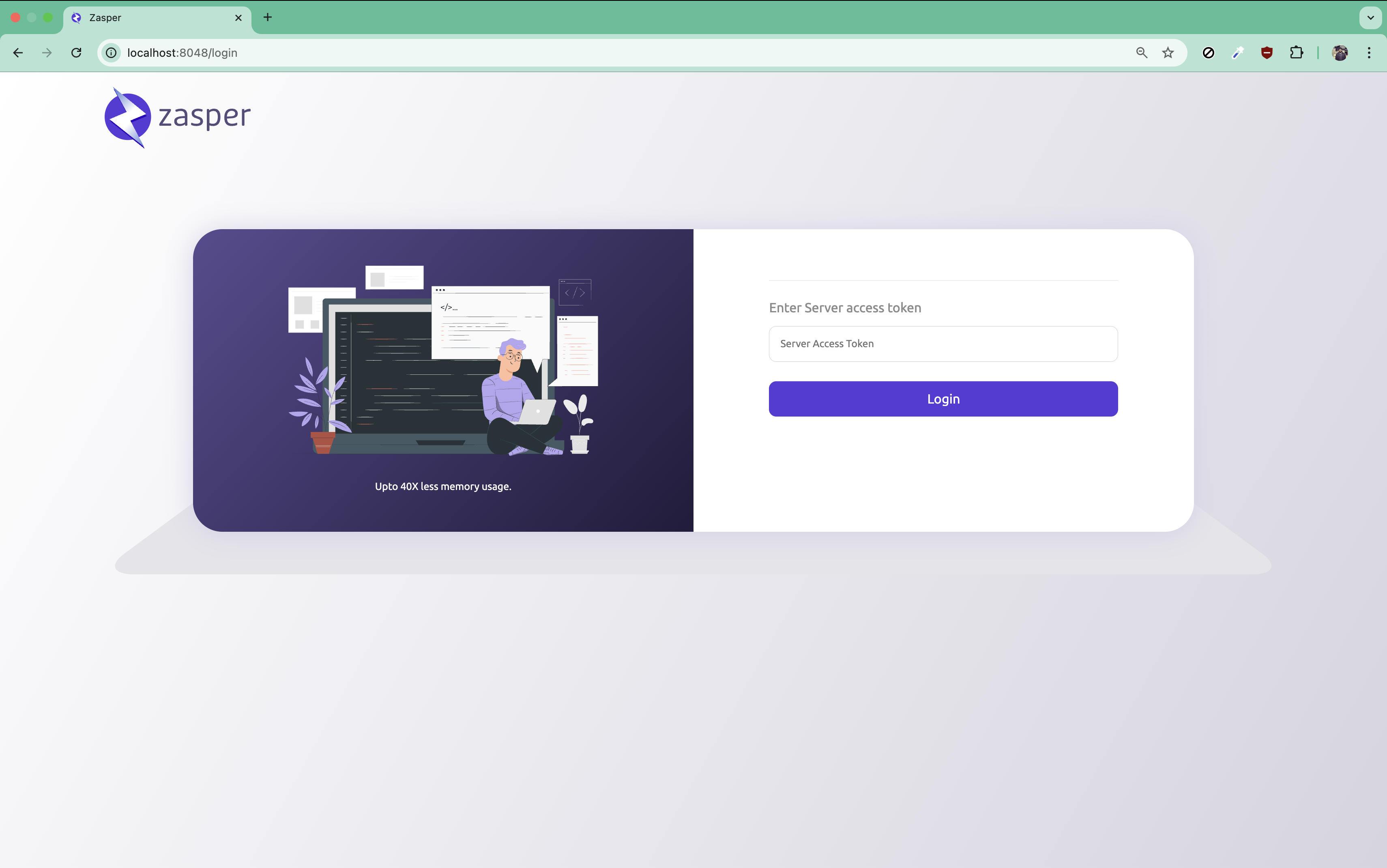
- With the token. Open Zasper in a browser, which takes you to the sign-in page, and paste the Server Access Token there.
The banner's links say localhost, because they are written for a browser on the server itself.
From another machine, replace localhost with the server's hostname or IP address, for example
http://my-server:8048/?token=….
When Zasper's output is not a terminal (under Docker, systemd, or piped to a file), it logs one
JSON line instead of the banner; the token is that line's access_token field.
ZASPER_LOG_FORMAT=console brings the banner back.
A session lasts 24 hours, after which you sign in again. It is an HttpOnly cookie, so no script
running in the page can read it, and Sign out ends it on the server, so a copy of it stops working
too. A client that is not a browser can send the token from /auth/login's answer as
Authorization: Bearer … instead. After ten wrong tokens in a minute, sign-in from that address waits
out the rest of the minute.
3. Keep the token across restarts (optional)
A new access token is generated every time the server starts, and open sessions are signed with a key derived from it — so a restart both changes what you type and signs everyone out. Set the token yourself to keep a link you have handed out working, and to leave signed-in browsers signed in:
export ZASPER_ACCESS_TOKEN=your-access-token
There is nothing else to configure: sessions follow the access token, and changing it signs everyone out on purpose. Sign-outs are remembered only while the server runs, so with the token pinned, a session signed out before a restart works again after it until its 24 hours are up.
Symbolic links
The file browser and the editor follow symbolic links, including ones that lead out of the project,
so a data folder linked to a large mount opens like any other. It also means a project containing a
link to ~/.ssh shows those files, as a terminal in the project would. Saving over a file that is
itself a link out of the project is refused.
Jupyter kernels
Zasper works with any kernel that implements the Jupyter protocol, including:
- Python, in any virtual environment, conda environment or uv project
- R (IRkernel)
- Julia (IJulia)
- Ruby (IRuby)
- JavaScript and TypeScript (Deno)
- Go (GoNB)
To see the kernels installed on your machine, run jupyter kernelspec list. The quickest way to
get a Python kernel is:
pip install ipykernel
conda environments
conda create --name my-env -c conda-forge ipykernel
conda activate my-env
python -m ipykernel install --user --name=my-env
uv projects
uv init my-project && cd my-project
uv add ipykernel
uv run python -m ipykernel install --user --name=my-project
Once registered, the environment appears in the Launcher and in each notebook's kernel picker.
Language servers
Errors as you type, completion, hover, go to definition and formatting come from a language server
you already have installed. For Python that is basedpyright, pyright or pylsp — whichever is
found first, in that order — and for Go gopls, with seven languages served in all. Zasper ships
none of them and starts the one it finds, in PATH and in the usual per-project places. The
status bar item at the right names the server, its state and, for Python, the interpreter it reads
imports with; its menu restarts it, shows its log, or names the command to install one.
Notebook cells are served too: the cells are given to the server as one document, IPython's magics
and ! escapes are hidden from it, and the interpreter it reads imports with is the one the
notebook's kernel runs.
Python type checking is off by default, as it is in VS Code: undefined names and imports that cannot be found are still reported, and nothing else is. Raise it under Settings → Language servers when you want a type checker's opinion on code you maintain.
See docs/LANGUAGE-SERVERS.md for those modes, what each server is told, and what to do when a correct line is squiggled.
Notebook compatibility
Zasper reads and writes the .ipynb format directly. Two guarantees are worth stating outright:
- A save produces no spurious diff. A notebook Zasper opens and saves comes out byte-for-byte the file Jupyter would have written, so saving does not manufacture merge conflicts.
- A file keeps its own nbformat minor version. A 4.2 notebook is written back as 4.2 rather than silently upgraded to the newest revision, which is what JupyterLab does. Notebooks in formats 2 and 3 are converted to 4.5 on read.
What renders
| Output | Status |
|---|---|
text/plain, stdout/stderr, tracebacks |
✅ |
text/html |
✅ |
image/png |
✅ |
Plotly figures (application/vnd.plotly.v1+json) |
✅ |
ipywidgets (application/vnd.jupyter.widget-view+json) |
✅ |
application/json |
✅ |
| Markdown cells: GFM tables, task lists, raw HTML, LaTeX via KaTeX | ✅ |
image/svg+xml |
✅ |
text/latex |
✅ |
image/jpeg |
✅ |
text/latex — what SymPy emits under init_printing() — is typeset with KaTeX, the same renderer
markdown cells use. image/svg+xml, which graphviz and networkx produce and which matplotlib
produces under %config InlineBackend.figure_format = 'svg', is inlined rather than wrapped in an
<img>, so a figure that sizes itself to the cell still can.
Known limitations
- Widget state is not written into the notebook. Closing and reopening a tab is fine: the kernel keeps running, and the widgets redraw from it. But the state lives only in the kernel, so once that is gone — after the server restarts, or when the file is opened anywhere else, such as on GitHub — the widget shows a placeholder until the cell is run again. JupyterLab can save widget state into the file so it renders without a kernel; Zasper does not write it yet.
- Notebooks are not signed or trusted. Zasper does not yet implement Jupyter's signature
database, and stored
text/htmloutput can carry scripts that run when the notebook is opened, which is how Plotly and Bokeh outputs draw themselves. Treat a notebook you did not write the way you would treat any downloaded file.
Keyboard shortcuts
Every action listed here is also in the command palette (⇧⌘P / Ctrl+Shift+P), which shows each
command's chord beside it, so the palette rather than this table is the thing to reach for when
you have forgotten one.
Where a row gives two chords for macOS, both work: ⌘ is the usual editor convention, and ⌃ is
what Zasper was bound to first.
Global
| Action | macOS | Windows / Linux |
|---|---|---|
| Show All Commands | ⇧⌘P or ⌃⇧P |
Ctrl+Shift+P |
| Go to File | ⇧⌘O or ⌃⇧O |
Ctrl+Shift+O |
| Zoom In | ⌘= or ⌘+ |
Ctrl+= or Ctrl++ |
| Zoom Out | ⌘- |
Ctrl+- |
| Reset Zoom | ⌘0 |
Ctrl+0 |
Zoom scales the whole window, chrome included. To change only the size of code, terminal text and cell output, use Increase / Decrease Font Size from the palette; those have no chord.
Notebook
| Action | macOS | Windows / Linux |
|---|---|---|
| Save Notebook | ⌘S or ⌃S |
Ctrl+S |
| Run Cell | ⌃⏎ |
Ctrl+Enter |
| Run Cell and Select Next | ⇧⏎ |
Shift+Enter |
| Insert Cell Above | ⌃⇧A |
Ctrl+Shift+A |
| Insert Cell Below | ⌃⇧B |
Ctrl+Shift+B |
| Move Cell Up | ⌃⇧↑ |
Ctrl+Shift+Up |
| Move Cell Down | ⌃⇧↓ |
Ctrl+Shift+Down |
| Delete Cell | ⌃⇧D |
Ctrl+Shift+D |
| Undo Cell Operation | ⇧⌘Z |
Ctrl+Shift+Z |
| Change Cell to Code | ⌃⇧Y |
Ctrl+Shift+Y |
| Change Cell to Markdown | ⌃⇧M |
Ctrl+Shift+M |
Cell operations are on ⌃⇧ rather than a bare ⌃ on purpose: ⌃A, ⌃B, ⌃E and ⌃K are the
system text-editing bindings on macOS, and Ctrl+A is select-all everywhere else, so a bare chord
would be swallowed before the cell's editor saw it.
Undo Cell Operation is the notebook's own history: it takes back an inserted, deleted, cut,
pasted or retyped cell, and a cleared output. ⌘Z inside a cell is the editor's, and still undoes
the text you typed there.
Move Cell Up / Down reorders the notebook and is not the same as Select Next / Previous Cell, which only moves the selection. The cell's hover toolbar has both pairs: chevrons move the selection, arrows move the cell. The focus travels with the cell, so the chord can be held to carry one cell several places.
These have no chord and live in the palette: Run All Cells, Cut / Copy / Paste Cell, Select Next / Previous Cell, Change Cell to Raw, Expand or Collapse Output, Clear Cell Output, Clear All Outputs, Interrupt Kernel, Restart Kernel, Restart Kernel and Run All Cells, Reconnect to Kernel and Change Kernel. The notebook toolbar and a cell's hover toolbar reach most of them in one click.
Inside a cell
These belong to the editor rather than to a command, because what they do depends on where the cursor is.
| Key | What it does |
|---|---|
Tab |
Accepts the highlighted completion; with a word to the left of the cursor, asks the kernel for completions; otherwise indents |
↑ on the first line, ↓ on the last |
Moves to the cell above or below |
Double-click, or Enter on a selected markdown cell |
Opens its source for editing |
Escape, or running the cell, in a markdown cell |
Renders it again |
A single click on a rendered markdown cell only selects it; it stays rendered.
Configuration
Command-line flags
| Flag | Default | Description |
|---|---|---|
--cwd |
. |
Base directory of the project |
--host |
127.0.0.1 |
Interface to bind; 0.0.0.0 puts the server on the network |
--port |
:8048 |
Port to start the server on |
--allow-host |
Other host names a server on loopback answers to, comma-separated, such as a reverse proxy's | |
--no-browser |
off | Do not open the app in a browser on startup |
--tracking |
true |
Send anonymous usage data; see Logging and privacy |
--debug |
off | Set the log level to debug |
--version |
Print the version and exit |
--protected is still accepted but ignored: Zasper always runs in protected mode.
Environment variables
| Variable | Description |
|---|---|
ZASPER_ACCESS_TOKEN |
A fixed access token, instead of a new one on every start; open sessions survive a restart when it is set |
ZASPER_ALLOWED_HOSTS |
Host names added to --allow-host's, comma-separated |
ZASPER_TELEMETRY |
0 or 1 to turn anonymous usage data off or on for this run |
ZASPER_LOG_FORMAT |
json or console; by default, console on a terminal and JSON otherwise |
ZASPER_ACCESS_LOG |
1 to log every request, not only the ones that failed |
Logging and privacy
The server writes logs to standard output. Run it with --debug to raise the log level.
Zasper sends a small amount of anonymous usage data: counts of things like notebooks opened, cells run and terminals started. It never sends file names, paths, code, project names, your username or your IP address, and there is no session recording or autocapture. PRIVACY.md lists every event and every property, and explains how the allowlist that enforces it works. To turn tracking off:
zasper --tracking=false     # this run
ZASPER_TELEMETRY=0 zasper   # this run, from the environment
Or clear Settings → Privacy → Send anonymous usage data, which is remembered. With tracking off nothing is collected and no request is made.
Architecture

Building from source
Requires Go 1.26+ and Node.js 22.12+ (.nvmrc pins the Node version, so nvm use picks it up).
git clone https://github.com/zasper-io/zasper
cd zasper
make install   # install the frontend's dependencies, build, and install the zasper binary
make install puts zasper in your Go binary directory, so make sure that is on your
PATH, then check the install with zasper --version. make build builds the binary in the
repository instead, make dev runs the frontend and backend in development mode, and make test
runs both test suites. make on its own lists the targets. CONTRIBUTING.md
covers the development workflow.
Roadmap
- Rendering for the outputs listed as not yet under What renders, first after 1.0.
- Support for data apps, beyond Jupyter notebooks.
- Easier integration with existing tools.
- Zasper Hub, for self-hosted deployment in the cloud.
Documentation
- zasper.io/docs: the user documentation.
- CHANGELOG.md: what changed in each release.
- docs/API.md: the HTTP and WebSocket API, covered by semantic versioning from 1.0.0 onwards.
- docs/LANGUAGE-SERVERS.md: which language servers Zasper starts, what they are told, and what they give a notebook that a file does not get.
- PRIVACY.md: what anonymous usage data is collected, event by event.
- PUBLISHING.md: how releases are cut.
Community and support
- Questions and discussion: join the Zasper community on Slack.
- Bugs and feature requests: open an issue.
- Sponsorship: support Zasper's development through GitHub Sponsors.
Acknowledgements
Zasper's development has been supported by a grant from FOSS United and Zerodha.


Zasper would not exist without the Jupyter community. It uses the Jupyter wire protocol and draws on Jupyter's architecture, and our thanks go to everyone who has built that foundation.
Contributing
Contributions of every kind are welcome: bug reports, documentation, and pull requests or reviews of them. CONTRIBUTING.md explains how to build Zasper and submit changes. Before your first pull request is merged, you will be asked to sign the Contributor License Agreement. Everyone taking part is expected to follow the Code of Conduct.
License
Copyright © 2024–2026 Prasun Anand.
Zasper is dual-licensed. You can use it under either of these:
- Open source: the GNU Affero General Public License, version 3 only (
AGPL-3.0-only). See LICENSE. Running Zasper, on your own machine or on a server, needs nothing more. If you distribute Zasper, or let people use a modified version over a network, the AGPL requires you to make the corresponding source, including your changes, available under the same license. - Commercial: for organizations that want to build Zasper into a proprietary product, keep their modifications private, or need terms the AGPL does not offer. Write to prasun@zasper.io.
Contributions are accepted under the Contributor License Agreement, which is what lets Zasper be offered under both licenses.